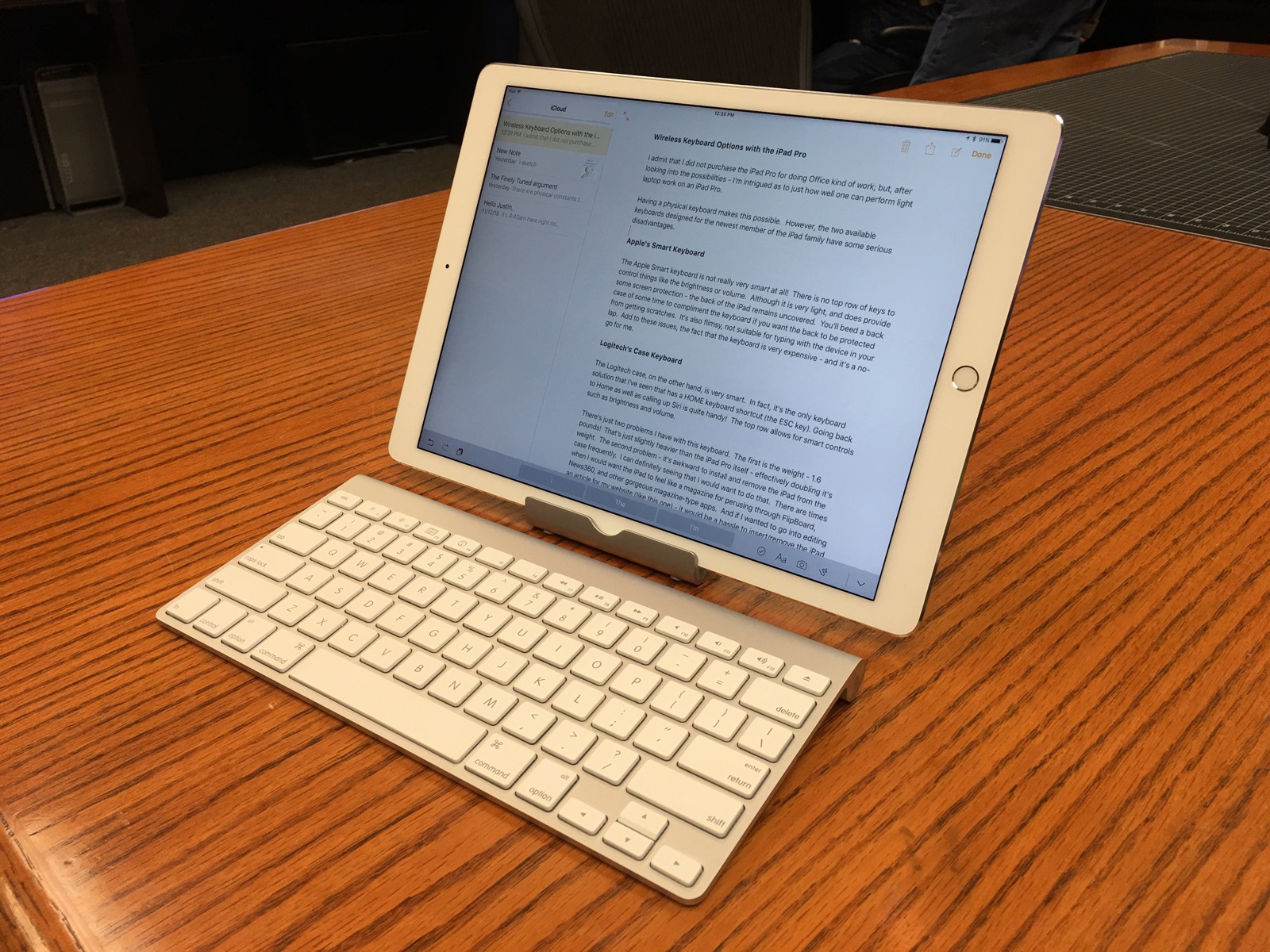
Wireless Keyboard Options with the iPad Pro

I’ll admit – I did not purchase the iPad Pro for document editing. Rather, I was more interested in art and photography capabilities. However, after considering the amount of available screen space and the ease of viewing – I’m intrigued with the possibility of light keyboard editing tasks on the iPad Pro. (I’m writing this article on it now.)
Physical keyboards certainly add to the functionality of these devices. But can’t we do better than the two popular options?
Quick Side Notes: Text Editing on iPads
I never really paid attention to features added to iOS 9 for working with text before. Did you know that in iOS 9, you can use the iPad screen as a trackpad to move the cursor around? Try it. Open any text editing app and touch the screen with two fingers – now, move your fingers and the cursor will follow. Another handy gesture: you can use a two-finger tap to cycle through various text selections. Two-finger taps will cycle through nearest word, sentence, or paragraph text selections. Once the text is selected, it’s ready for standard keyboard cut-and-paste, replacing, deleting, etc. These kinds of aids are moving iOS along for general text editing. I should also mention, familiar keyboard shortcuts exits for Spotlight search, and app-switching as well.
So, along comes iPad Pro. Returning to our original question:
Can we do better than the two current keyboard options designed for this device?
Apple’s Smart Keyboard
Ironically, Apple’s Smart-keyboard isn’t very smart! There is no function row of keys to control things like screen brightness, sound volume or music pause/play. I will say this: as far as weight goes – it is a light solution. But, it’s also flimsy; it’s not suitable for lap typing. Add to this, the keyboard is very expensive – so for me it’s a no-go.
Logitech’s Case Keyboard
The Logitech case, on the other hand, is very smart. In fact, it’s the only keyboard solution that has a dedicated HOME key, logically located in place of the ESC key. Reaching the home screen as well as calling up Siri can be quite handy! The top row allows for other smart controls missing from Apple’s keyboard solution.
There’s just two problems with this keyboard – its weight, and the awkwardness of inserting/removing the iPad frequently. The keyboard weighs 1.6 pounds! That’s slightly heavier than the iPad Pro itself – effectively doubling the weight. And, there are times when you just want to hold the device in true magazine-fashion without bothered by a bulky heavy case. The clarity of the display begs holding it in hand to read gorgeous presentation apps such as Flipboard or News360!
So, the weight, combined with the hassle associated with frequently inserting/removing the device from this keyboard case makes it not very desirable as well.
My Solution
Here’s the solution I found works best. I made use of an Apple Bluetooth keyboard, used together with a light, padded, adjustable iPad stand. I already had both of these laying around the house.
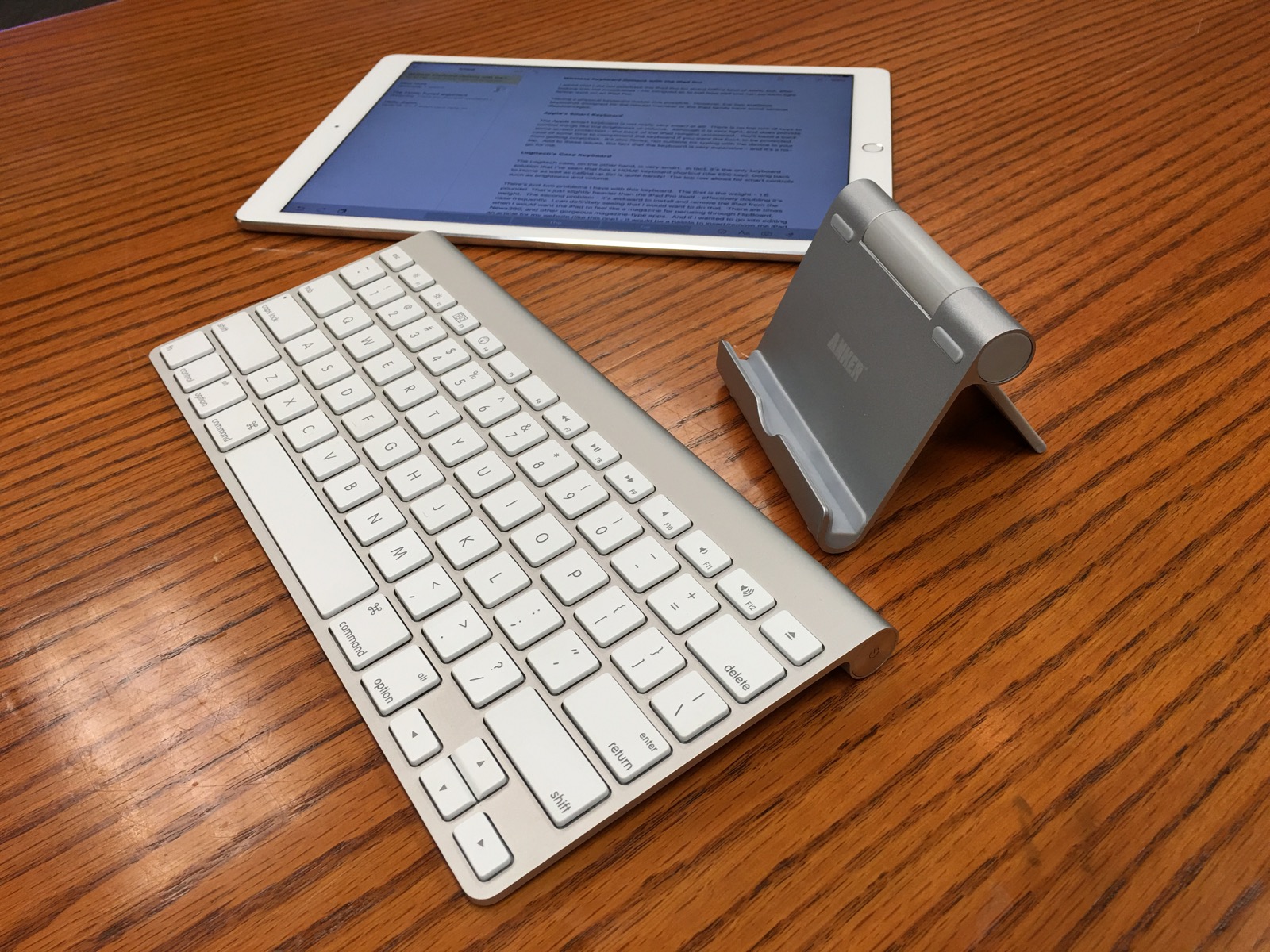
You’ll find these Bluetooth keyboards do allow for smart controls. Adjusting volume, brightness, and music controls are all there. Missing is the HOME button, but that’s a small sacrifice for the advantages mentioned above.
Part of my solution was dependant on how I tote my iPad Pro around – in a well padded section of my laptop backpack. Basically, I opted to go without a case, as I consider my backpack to be the case. The money I would have spent on a normal case went towards Apple Care. If I ever drop the pad (not likely as it stays in my backpack during transit), then it’s only $49.00 to replace it as opposed to non-Apple Care charge of $500.